Unit 15.3 Publish and test multiple page websites with multimedia and interactive media.
This report will consider the appropriate method of testing a multiple page website, how to use appropriate testing methods, how to Identify any quality problems with websites and how to respond to them
This report will examine why Website testing is important to make sure that a company makes a good impression on potential customers and existing customers. The testing of a website can help make sure a companies website always works correctly, respond quickly, and displays correctly.
3.1 Selecting and using appropriate testing methods to check that all elements and features of complex websites are working as planned.
A distant web server often behaves quite differently from a local one, so it’s a good idea to test your website once it’s online. You might be surprised at how many problems come up: images don’t show up, pages don’t load or load slowly, and so on. Most of the time it’s no big deal, just a simple mistake or an issue with your web hosting configuration.
Let’s see how to diagnose and solve those problems.
Checking your web-tracking-code setup
Make sure you’re collecting data and seeing it in your reports.
There’s the problem, that “404” at the bottom. “404” means “resource not found”, and that’s why we didn’t see the image.
Checking your Real-Time reports
The Real-Time reports let you see current activity on your site. If these reports have data, then your tracking code is collecting data and sending it to Analytics as expected.
The Real-Time Overview and Behavior reports let you see activity for specific pages. If you haven’t added the tracking code to all pages on your site, you can check these reports to see whether the tracking code is sending data from the pages you have tagged. These reports show activity for only the most active pages, so they don’t provide an exhaustive assessment, but they’re a good signal that your tracking code is working correctly.
To see the Real-Time reports:
- Sign in to your Analytics account.
- Navigate to a view in the property to which you added the tracking code. If you only recently added the tracking code to this property (website), it is likely that there will only be one view.
- Open Reporting.
- Select Real-Time > Overview or Real-Time > Behavior.
You can use the Behavior > Site Content reports checking pages that don’t appear in the Real-Time reports, but keep in mind that it takes 24-48 hours to process the data for non-real-time reports.
Use Google Tag Assistant to verify your setup
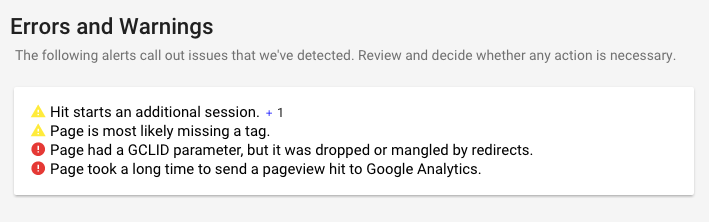
Google Tag Assistant is a free Chrome browser extension that shows you whether Google Analytics tags (the tracking code) are firing correctly. Tag Assistant lets you record a user journey on your site, and then see a report of all the hits sent during that journey and whether there were any errors associated with sending those hits.
The image below shows an example of the kinds of errors that the Tag Assistant reveals:
Reference: https://support.google.com/analytics/answer/1008083?hl=en
3.2 Identify any quality problems with websites and explain how to respond to them.
Troubleshoot tracking-code setup and no-data issues
This troubleshooter is designed to help you resolve issues with the setup of your Analytics tracking code.
Select the issue that most closely matches the issue you are having.Please select your issues don’t see any session data in my Analytics account see a drop in sessions in my Analytics account
Website down? Server down? 5 network troubleshooting tools here to help

We’ve all been there: A website refuses to load, returning a generic “website is not available” or “URL was not found on this server” error instead. Or a website hangs, never loading all the way. Or maybe you’ve been frustrated when trying to access a local application server, leaving you wondering what the problem might be. The question then becomes whether the issue is with the computer, the network, the site that you can’t reach, or with your internet service provider.
Troubleshooting connection issues and server down issues
Many variables can cause network issues, often making finding the root cause of problems difficult. But there’s good news: You can use many free network troubleshooting tools to help you identify where the problem is, and what your next steps should be. Whether you’re a home user with just a couple of devices or an IT professional who manages hundreds of PCs, you can benefit from the following tools:
1) Website Down Check: How to see if a website is down or responding slowly
Tools like the Spiceworks Website Down Checker can help you quickly figure out if any webpage is currently experiencing problems or if the problem is likely with your network. Simply enter the URL to see if everyone else is unable to access the site, or if the problem only affects you.
If you want to dig deeper to discover how quickly web servers are responding, the site Isitdownrightnow.com monitors the current status of popular websites such as Outlook.com, Gmail.com, Dropbox.com, YouTube, Facebook, and more. If a site you want to reach isn’t already being tracked by the tool, you can also enter a custom URL to view its status. Users can also report website problems they’re experiencing with websites so you can get better insights into what’s going on with your favorite services.

2) Ping: a tool that checks if a server, website, or device is “alive” and responding
Ping is a simple, widely-used software utility that checks if you can reach a website or networked device (whether that’s a PC, smartphone, server, or Wi-Fi enabled coffee pot) and measures how long it takes to get a response. Because computer networks are not 100 percent reliable and data delivery isn’t always guaranteed, ping also measures how many data packets get lost on the journey to and back from the device you want to contact. If any of this sounds familiar, it’s because ping is used by sites like “Is it Down Right Now?” and by advanced network monitoring software (which we’ll talk about in a later section) to get data to display in their dashboards.
Windows and Linux both come with the ping utility — no application download necessary. To use the tool, simply open a command window then type “ping” followed by the computer name, IP address, or website URL you want to reach (for example “ping google.com”). Because the application runs on your computer, ping can also be used to check the availability of devices on your local network, which is one major advantage it has over sites such as “Is it down right now?”. Fun fact: The ping tool was named after the sound sonar makes because they both work by sending out a signal, then listening for an echo reply.

3) Traceroute: a tool that can help you pinpoint where a connection is broken
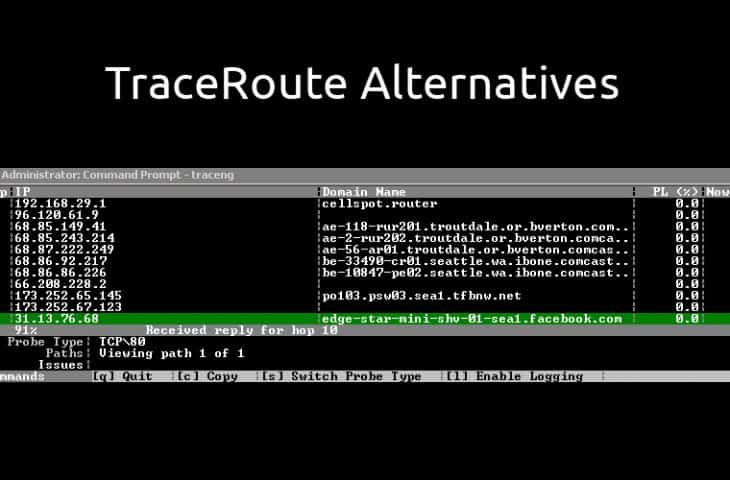
The appropriately named traceroute utility helps you trace and map the route data packets take when they travel from point A to point B. Traceroute is available as a command line utility on most major operating systems (Windows, OSX, Linux). If the tool runs successfully, this commands returns an ordered list of the routers your data passed through on the way to its final destination.
If you’re experiencing connectivity issues, the tool can help you locate where in the chain there’s a problem, and you can debug further from there. While a text-based version of the tool is available on both Linux and Windows (tracert), graphical versions of the tool, such as Spiceworks Traceroute, can provide more reliable results, visually map out the path packets take and continuously monitor changes in a route over time.
4) Network monitoring software: keep an eye on all your critical devices, websites, and services
A server can go down for many reasons. Maybe a physical machine loses power, or perhaps the operating system or network card experiences an issue — many variables can cause a failure. If you’re an IT professional that needs to look after many servers and websites, you have a lot to keep track of.
Manually checking dozens of devices and servers constantly is tedious (and the stuff of migraines). If one fails, you might not know until someone frantically bangs on your door. A network monitoring solution provides real-time insights for all of your servers, whether they’re located in-house or you access them through the internet and can alert you at the first sign of trouble.
Network monitoring software can also automate “ping checks” to see if a server, VoIP phone, security camera, or any other device is online and responding. Additionally, your network monitoring tool can display the status of your local and external devices in a customizable dashboard.
Additionally, network monitoring software like Spiceworks Monitor utilizes protocols like SNMP, SSH, and WMI to measure (among other things), server CPU, disk, and memory usage, network switch bandwidth utilization, and the performance of individual applications. More importantly, you can configure network monitoring software to send alerts to many people whenever something is amiss, so you and your IT team can stay in the know and rapidly respond to issues.

5) Spiceworks Connectivity Dashboard
Another tool, Spiceworks Connectivity Dashboard, can help you stay in the know about the status of all of your servers, services, and websites and whether your client systems can access them.
This free tool helps you figure out not only if a critical server has gone down, but also if a service is experiencing excessive latency or degraded performance for all users, or just a few. The Spiceworks Connectivity Dashboard works using agents you install on client systems, which occasionally ping critical services. These agents then report the connection status of each client to a cloud-based server that in turn provides a dashboard view of all of your devices and applications.

Use tools and prosper
In short, server, application, and network glitches are a fact of life, but you can do something to ease the pain. By using the tools described above, you can stay on top of an outage, whether the problem lies on the internet or on your own local network… so you can respond to and address problems ASAP.
Reference: https://www.spiceworks.com/it-articles/tools-when-server-is-down/
https://support.google.com/analytics/troubleshooter/7400465
Best Programme to upload and publish a website
4 Simple Website Builder Software To Help Build Your Website in 2019
When it comes to building websites, understanding what makes a good website builder software (or platform) and how to pick one for you will help you move forward in creating your own website.
To make things easier for you, we’ve done all the research ourselves and asked regular people to test each platform. This means we can provide the fairest information possible.
There is a lot of website builder software in the market nowadays to help you create your own website, even if you don’t have any technical knowledge.
For sure, if you have a bit of coding knowledge, you can take your website design and functionality a lot further – but this is not an absolute necessity when it comes to building websites.
It’s not that long ago that if you wanted to create a website, you will either have to go through a painful process to learn how to code, or you have to spend thousands of dollars to hire someone to code one up for you.
Not anymore.
Web builder software such as Wix, Squarespace, Weebly, SITE123, or Jimdo is built to make website building possible for anyone, from kids to grandparents. Specifically, Wix, Weebly, SITE123, and Jimdo are free website builder software, while Squarespace has a free trial program.
Here’s a quick snapshot of some of the website building software that we recommend and how we rate them.
Best Software to Build a Website
- Wix – best overall website builder
- Weebly – best for small businesses and portfolios
- Squarespace – best designs
- Wix & Squarespace – best for e-commerce
- Wix & SITE123 – easiest to use
- Weebly – best features
- Wix & Weebly – best value for money
- Wix & Site123 – best support
“No longer do you need to know how to code to build websites. You don’t need to be technical at all!”
To make website building possible for all levels and ages, the website builders we mentioned above created what the industry calls “WYSIWYG” (What You See Is What You Get) builders.
Basically, you get to drag and drop content directly onto a blank canvas for you to build a website. Here’s an overview of the top four drag and drop website builders:
- Wix– best overall website builder
- Weebly– best for small business
- Squarespace– best for design
- Site123– best for customer support
Choosing a website builder depends on what you’re looking for. Wix, Site123, and Weebly are really easy to use and have free plans, so you don’t have to spend a dime. Squarespace is more design-oriented, ideal for users who don’t mind a slightly bigger creative challenge. It’s also worth noting Squarespace offers a 14-day free trial so you can try before you buy.
No longer must you code in any content such as paragraphs, pictures, slideshows, dividers, and so on and so forth. If you can drag & drop, you can build websites now.
WYSIWYG website creators give you the tools so you just have to drag a picture (for example) from their toolbar directly into the website content area to start constructing your site. You can add pages, subpages, blog posts, pretty much most of the critical components of a website are within your reach.
Once you have populated your website with content, you just have to save your additions and publish your site. What you see on your screen when you are editing, will show up exactly the same way when you publish your website (that’s why they call it What You See Is What You Get!)
This makes website creation very simple, straight forward and powerful. Almost anyone can drag content, upload pictures or text, and publish without having to write one line of code.
Reference: https://www.websitebuilderexpert.com/website-builders/best/software/
 Digital Marketing Level 4